Welcome to the Panorama Pilot
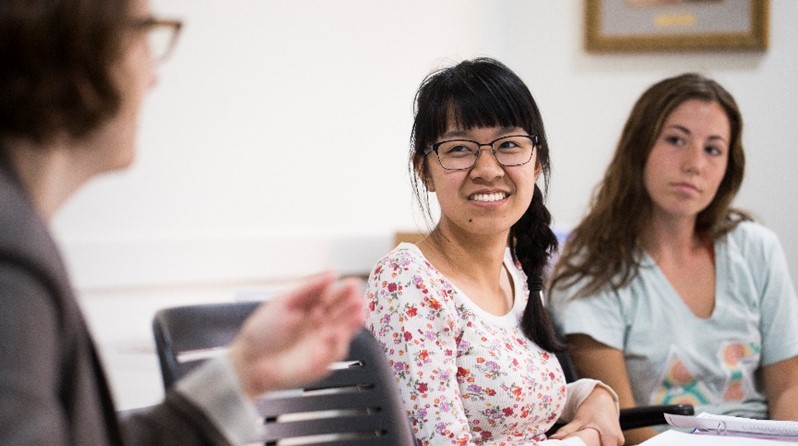
Picture of active discussion in classroom

Next Steps

Use the information below to get started using Panorama to make valuable improvements to the accessibility of your learning materials.

Requirements

To increase the accessibility of your course materials and contribute your feedback in the process, please do the following:

  1. Follow Panorama's guidance and make accessibility improvements to your learning material within a reasonable effort level.
  2. Focus on file types such as PDFs, Docs, and PowerPoints
  3. At regular intervals, report back to ITS about how you rate the ease or difficulty you experience.

Resources

ITS is available to support your use of Panorama in the following ways:

Guidance

Increasing accessibility is expected to be an iterative process. You are encouraged to make what noticeable improvements you can as time and skill permits. You are not obligated to take your accessibility level to 100% in all cases.

  • Beyond disability accommodation, Panorama supports:

    • Normalizing flexible learning formats for all learners

    • Increasing transparency around course design

    • Empowering faculty to design universally accessible materials

    • Reducing disparities linked to language, technology access, or cognitive differences

    • Helping students feel seen, valued, and supported regardless of identity or ability

    When accessibility becomes “baked in” rather than “added on,” the entire learning environment becomes more equitable.

  • Tk

  • ITS has admin-level access to the systems we provide for the purposes of maintenance, management, security, and support. We take measures to protect data integrity and anonymize identities as a standard practice.

  • LMU aims to meet federal ADA compliance standards as well as international WCAG expectations. Because we promote an inclusive learning environment that lets everyone participate, regardless of ability, LMU is adopting a solution that makes remediation convenient and efficient.

    Link to Provost Accessibility Statement - forthcoming

  • LMU convened multiple teams to vet multiple accessibility solutions. After a careful process of research, evaluation, testing, and analysis, ITS, DSS, OOL, and Library ultimately decided on Panorama as the optimal tool that meets our needs and serves our purposes.

    Did ATC participate? Wondering if you can invoke faculty participation here.

  • Panorama supports digital accessibility, which is part of a broader goal. As part of its mission, LMU values universal design for learning and inclusive pedagogy, and accessibility is a vital part of that. Accessibility benefits everyone and everyone can contribute to the process. Panorama helps faculty make their course materials accessible from the outset, so those who engage in proactive practices help reduce the need for reactive accommodations.

  • Because Panorama converts digital content into each student’s preferred format, students get multiple ways to experience learning material.

    Panorama allows students to:

    • Adjust fonts, text size, and color contrast

    • Convert text to read-aloud audio, or convert audio to text

    • Use distraction-free features for focused reading

    • Leverage visual, auditory, and cognitive preferences

    • Read or listen to content in different languages

    • Download content for offline access

    • Transfer content to various devices and assistive readers

  • Instructors can take advantage of Panorama's features to ensure their digital content meets accessibility standards.

    Panorama allows faculty to:

    • Use auto-fix tools to make sweeping corrections

    • Use edit-in-place tools to correct as you go

    • Choose which alternative formats to show or hide

    • Gauge accessibility of overall course, or file-by-file

    • Privately view reports and analytics about your course

  • No. Your course’s original files remain intact. When Panorama produces alternative versions of your content, your existing version remains unchanged.

  • Once Panorama is enabled, small icons will appear next to files and pages, indicating the availability of accessibility features.

    Use a screenshot

  • Students see a small icon that brings up the alternative format options that the instructor has preset to be available for that file or for the course. Students do not see the Panorama dashboard, nor any remediation tools, nor any accessibility score.

  • The files, documents, and assets that you remediate are all contained within LMU's secure learning environment and are not exposed to the public internet. Because Panorama functions within Brightspace, only students who are registered for your course, are on your Brightspace Roster, and who are actively logged in to Brightspace can access the specific learning content of your course.

  • The accessibility score is a positive indicator of how accessible your course is overall and also how accessible individual files are. Scores are calculated as a percentage and the percentages fall within a range. Low percentage scores are in the Severe range, mid-level scores are in the Major range, and higher scores are are in the Minor range. While high scores are good to aim for, the nature of digital accessibility means that perfect scores of 100% are not always achievable and therefore not mandatory. As the course owner, only you see your score.